
Home › Models › BYD Dolphin › Repair › Infotainment & Software
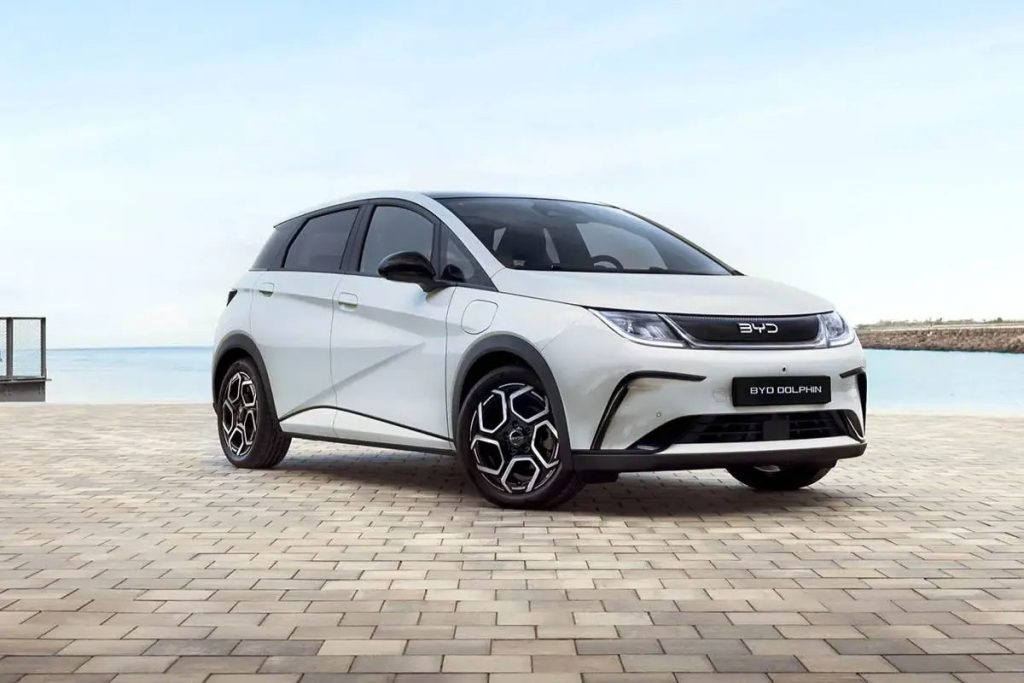
The interior of this C-segment hatchback is dominated by its digital interfaces, including a TFT instrument panel and a large central display. This page offers reference information on BYD DOLPHIN touchscreen repair, software updates, and connectivity troubleshooting.
This model is fully electric, and driving features such as the climate control and charging schedules are controlled via the central screen. While owners can perform basic resets and updates, hardware failures require professional attention. High-voltage components must not be opened by owners. Confirm with an authorised BYD dealer for any hardware replacement. Check your owner’s manual for standard operating instructions.
Contents
- BYD DOLPHIN touchscreen repair
- BYD DOLPHIN software update
- BYD DOLPHIN Android Auto not working
- BYD DOLPHIN Apple CarPlay not working
- Voice control and apps
- Frequently asked questions
- See also
- Sources
BYD DOLPHIN touchscreen repair
The vehicle features an electrically rotatable touchscreen that can switch between landscape and portrait orientations. A BYD DOLPHIN touchscreen repair is necessary if the screen goes blank, fails to respond to touch inputs, or if the rotation mechanism jams.
Before assuming the hardware is broken, try restarting the vehicle. If the screen remains unresponsive, do not attempt to dismantle the dashboard. The unit is connected to the vehicle’s central computer. Confirm with an authorised BYD service centre to diagnose the issue. BYD’s own procedure applies when replacing the display or calibrating the rotation motor.
BYD DOLPHIN software update
The car is equipped with onboard 4G connectivity, allowing it to receive Over-The-Air (OTA) improvements. A BYD DOLPHIN software update can add new features, improve the “Hi BYD” voice control, or patch bugs in the navigation system.
Check your owner’s manual for the exact steps to follow during an update.
BYD DOLPHIN Android Auto not working
If you find BYD DOLPHIN Android Auto not working, there are user-level checks you can perform. First, ensure your smartphone’s operating system is up to date and that the Android Auto app is functioning. Check the USB cable, as a damaged or low-quality cable will disrupt the data connection. Try restarting your phone and rebooting the car’s infotainment system. If the problem persists, verify if a vehicle software update is pending.
BYD DOLPHIN Apple CarPlay not working
Similarly, if you experience BYD DOLPHIN Apple CarPlay not working, start with the basics. Inspect the cable for damage and test a different port if available. A simple phone restart can resolve connection issues.
Voice control and apps
The Dolphin includes DAB+ radio, built-in navigation, and the “Hi BYD” voice control system, which can operate functions like the windows or air conditioning. The BYD app also allows remote monitoring of the vehicle.
| System | Function | Action |
|---|---|---|
| Rotatable touchscreen | Central control interface | Dealer hardware repair |
| Software | Vehicle operating system | OTA update |
| Android Auto / Apple CarPlay | Smartphone integration | Check cables / phone |
| BYD app | Remote vehicle monitoring | Update smartphone app |
Frequently asked questions
How do I fix a frozen touchscreen?
Check the owner’s manual for resetting the screen. If it remains frozen, confirm with an authorised BYD dealer.
Can I force a software update?
Check your owner’s manual for the correct sequence.
Why won’t my screen rotate?
Ensure there are no physical obstructions blocking the screen’s path. If the motor has failed, BYD’s own procedure applies for repair.
Does the car have built-in navigation?
Yes, the vehicle features built-in navigation.
Are software updates free?
Confirm with an authorised BYD dealer regarding the delivery and terms of software updates.
See also
Sources
- BYD UK model information: https://www.byd.com/uk
- BYD UK media site: https://bydukmedia.com
- Owner’s manual for your model – ask your BYD dealer